Skip to content

Portfolio project by Bruna PradoVela RH is a fictitious company

EN
EN
See the demo

30-minute demo

Almost there

We'll send the invite to . Tell us a bit more so the demo fits your company.

Demo form: nothing you type leaves your browser.

Time tracking · 2 min

Approve overtime and time entry adjustments

How managers and HR approve open items before they reach payroll.

  1. Open Time tracking › Open items (or the shortcut on Home).
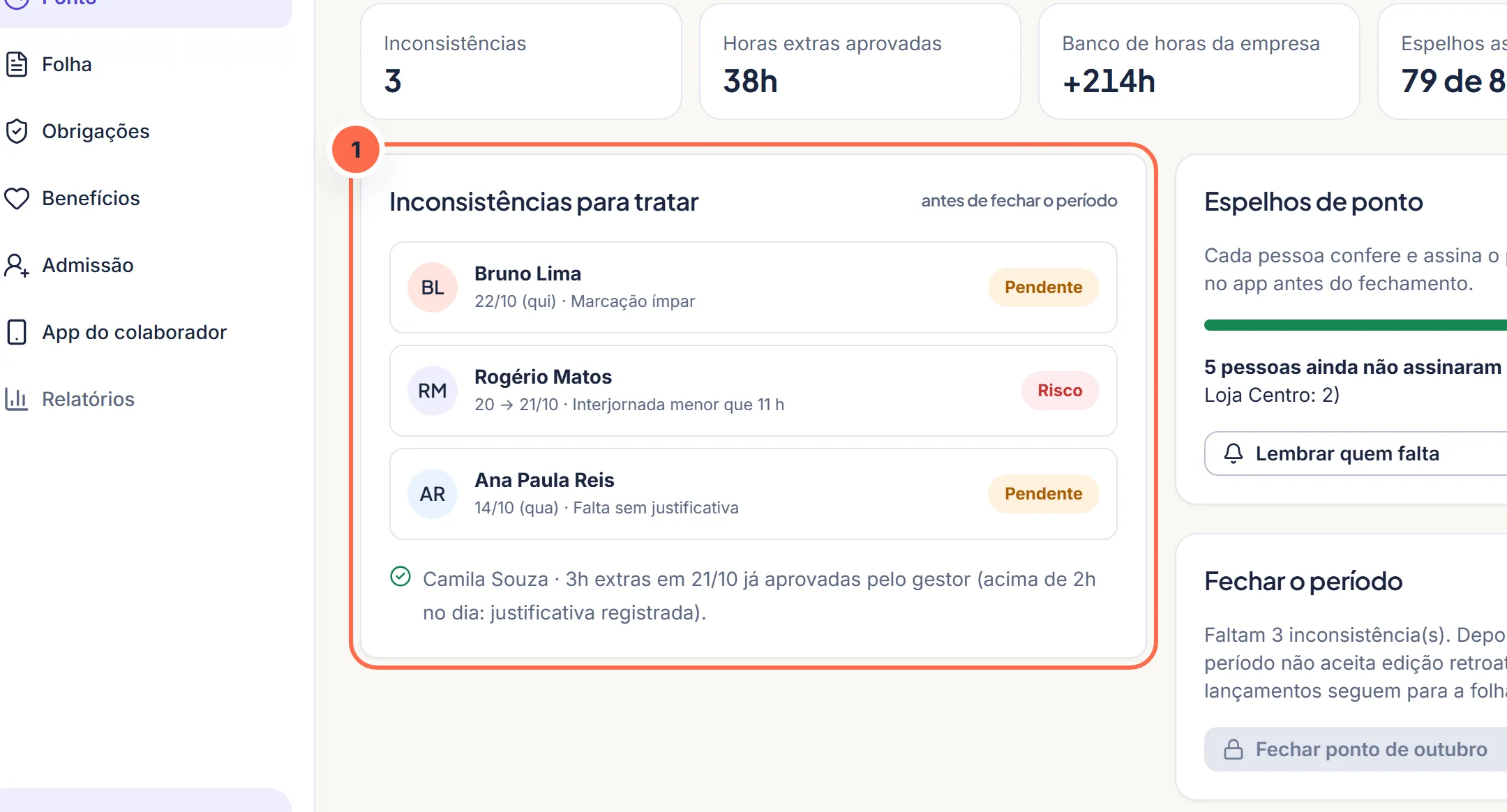
    Vela screen at step 1: The month's open items are gathered in Time tracking.
    The month's open items are gathered in Time tracking.Do it in the demo
  2. Each item shows the person, the day, the reason and the balance.
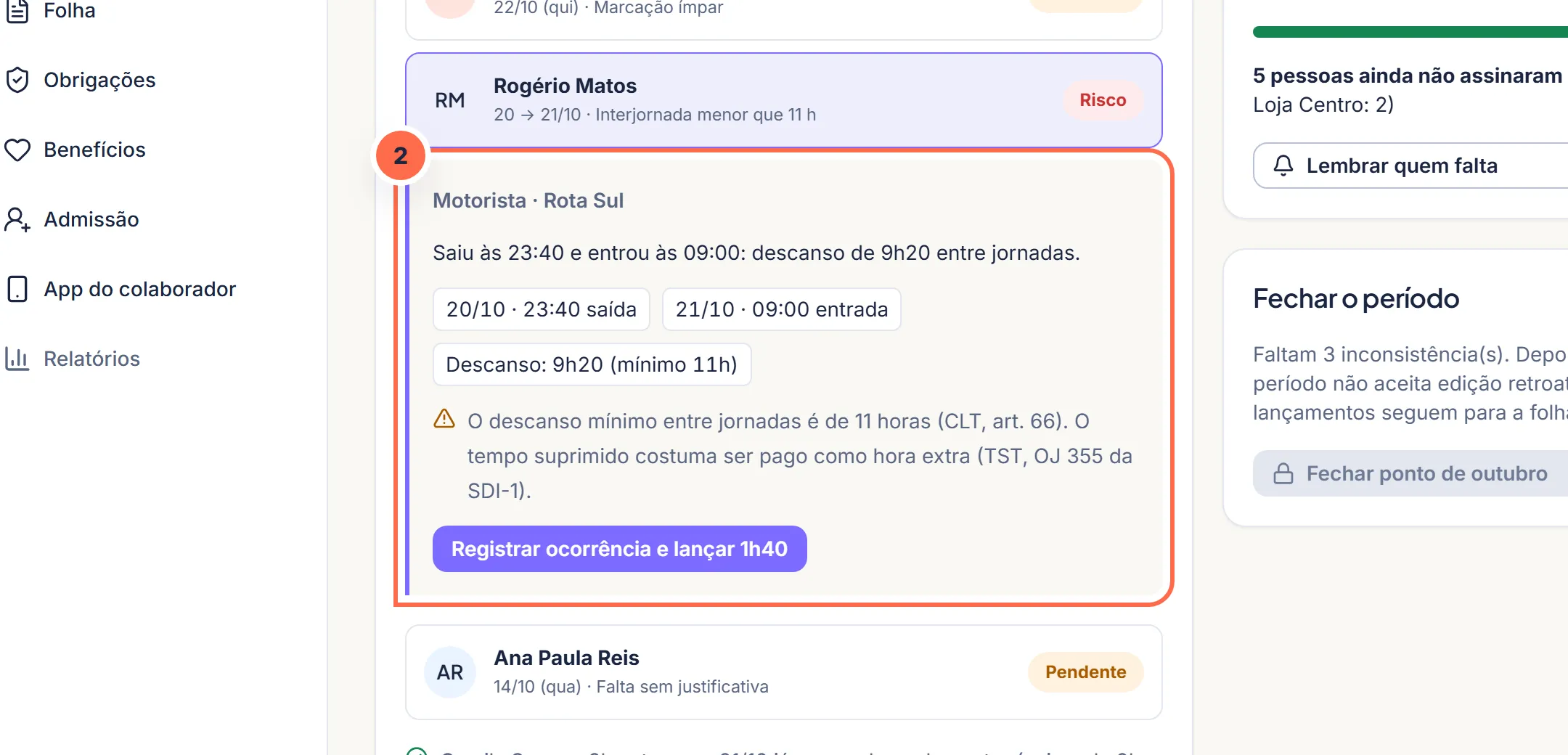
    Vela screen at step 2: Each item shows the person, the day, the punches and the rule.
    Each item shows the person, the day, the punches and the rule.Do it in the demo
  3. Click “Approve” or “Decline”. When declining, write the reason.
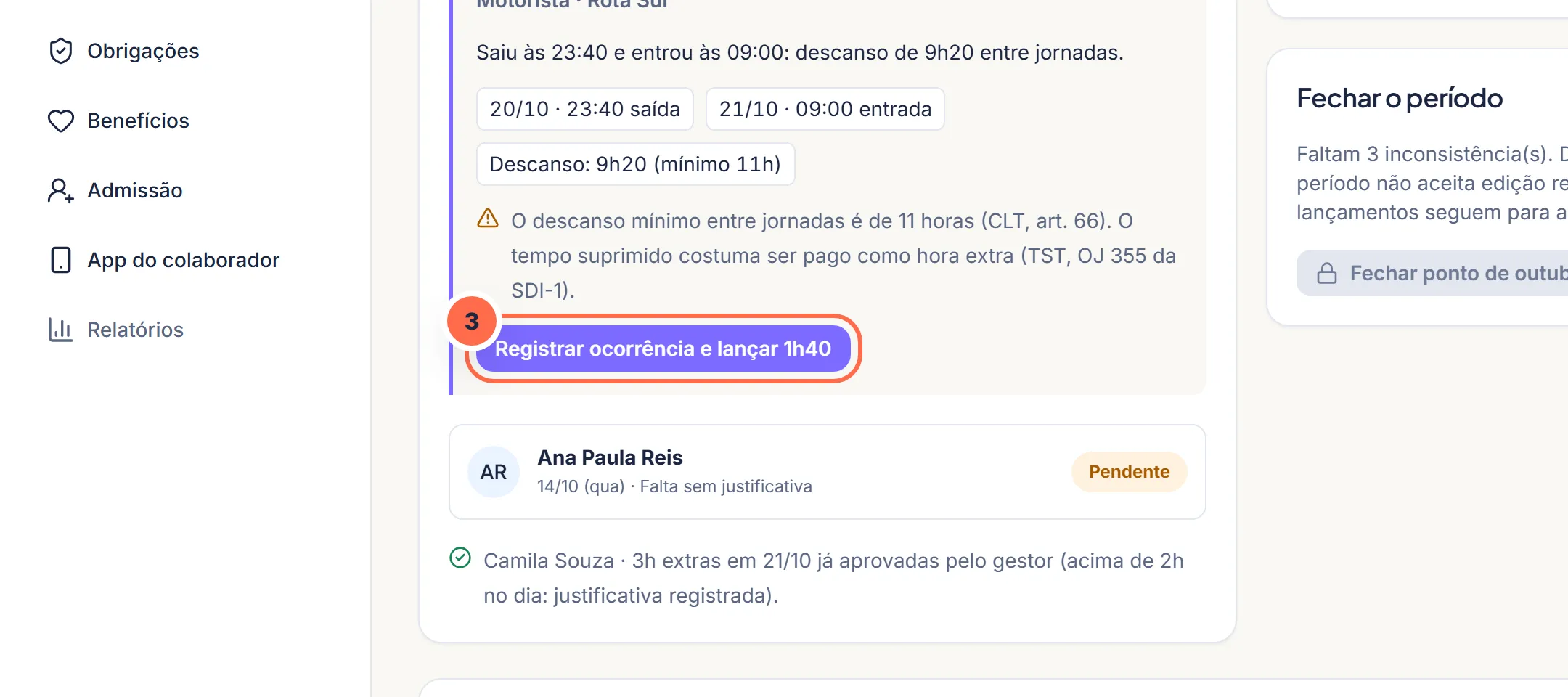
    Vela screen at step 3: The decision is one click away, with the effect described on the button.
    The decision is one click away, with the effect described on the button.Do it in the demo
  4. Once approved, the hours go to payroll or to the hours bank, according to the company's rule.
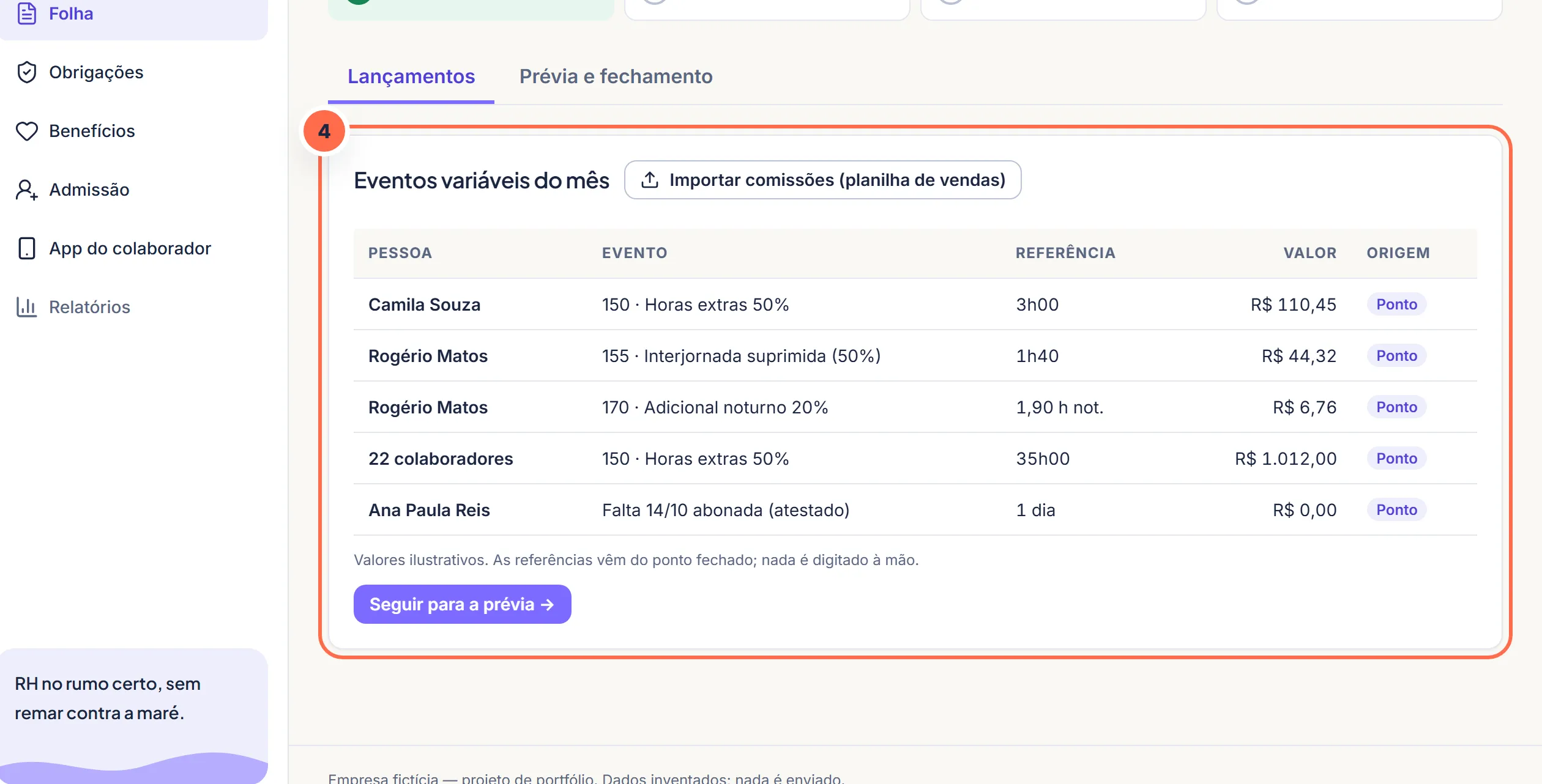
    Vela screen at step 4: Once approved, the hours reach payroll with their source.
    Once approved, the hours reach payroll with their source.Do it in the demo

Was this article helpful?

A fictitious help center, created for the portfolio. The screens mentioned exist in the product demo.

The Vela newsletter

Payroll without scares, once a month

Payroll deadlines, changes in the law and a ready-made checklist for the month. No spam: you can leave whenever you want.

Demo: nothing is sent or stored.

Search the site

Esc

↑↓ navigate · Enter open · Ctrl+K from any page